We offer a vertically integrated, unique blend of services, rarely found under one roof. Combining over 35 years of experience in strategic planning, graphic design, systems design, application development as well as multimedia and data visualization service – we are the Total Communications Solutions.
Showing posts with label camera. Show all posts
Wednesday, August 15, 2018
Marketing and Photos with Montage
Staff Snap Camera App:
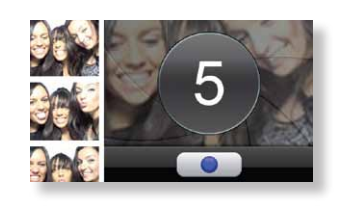
If you have been looking for a portable “Photo Booth” option the Staff Snap Camera App is for you. This camera App is a Web application that allows you and any of your team to take photos on a cell Phone or iPad and post them to multiple places on your Montage board instantly from anywhere in the office or while at an event. The best part is… You do not need to go to the App store to Download this camera App.
Simply go to: www.andisolutions.com, Log into your account and Click on the Montage 3.2 icon. Go
to the drop menu on the upper right corner, then click on “Camera”. It’s that easy.
Photo Booth Props and Backgrounds:
It’s time to throw that basket of messy feather boas and plastic sunglasses in the trash…you don’t need those props anymore. Montage has all of the props your patients could ever want! The Montage Photo Booth Widget includes fun props and wild backgrounds and that can be added to any photo. Photos can be saved and emailed or texted to the patient directly from the board. Not seeing Props and Backgrounds in you Photo Booth Widget? Give us a call and we’ll make sure they are activated for you.
To learn more about Montage Interactive and how it can reach more patients for your practice, contact us at info@solutionsbydesign.com
Tuesday, April 19, 2016
FAQ Of The Month: How Come My Camera Is Not Working?
Montage was developed to create the ultimate patient experience in the reception area of your office. You can organize, manage and display educational and informational content in one place and make it fun at the same time. We understand that technology isn’t always easy to use, so this month we decided to take one of your Frequently Asked Questions, and provide the answer for you below!
Question: How come my Camera is not working?
Answer:
Question: How come my Camera is not working?
Answer:
- Please check if the camera is plugged into the computer attached to the back of the Touchscreen board or try using a different USB Port.
- Next refresh the contents of the page that is currently running on the Montage board. When prompted make sure you are selecting “Allow” when it asks if you want to let www.andisolutions.com use your camera. The message should right above the content of Montage. If it does not please do not hesitate to give our office a call.
- If the problems persist, let us know and we can get this resolved for you.
Subscribe to:
Posts (Atom)
